See Your First Correlation
Once a source is connected, Waypath starts correlating. Identities resolve across platforms, touchpoints stitch to campaigns, and the Intelligence surface fills with the relationships that were already in your stack but invisible until now.
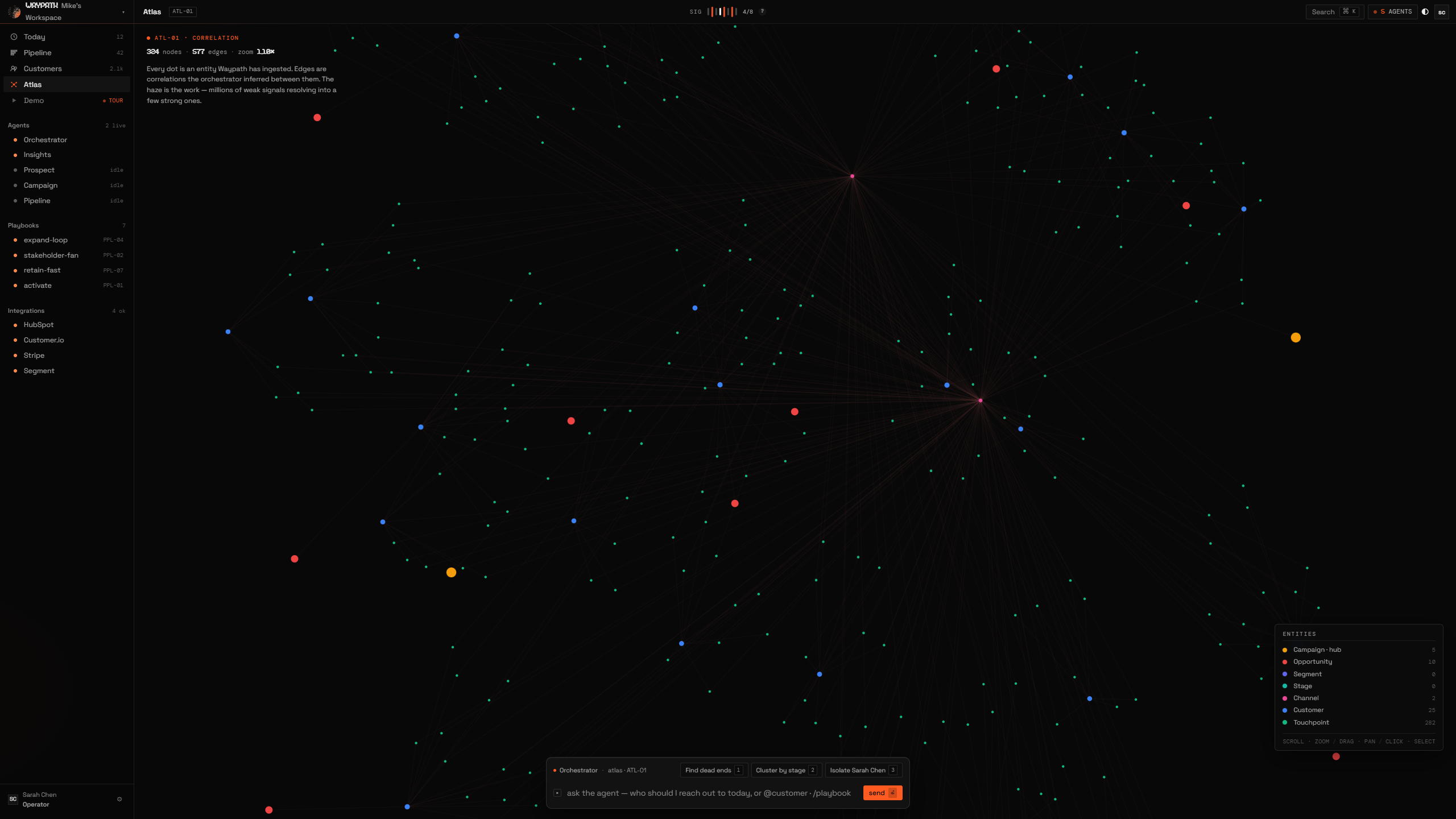
01Navigating the view
| Action | How |
|---|---|
| Pan | Click and drag the background |
| Zoom | Scroll wheel or pinch |
| Select an entity | Click any entity |
| Search | Cmd+K (Mac) or Ctrl+K (Windows) |
| Reset view | Click the target icon in the controls |
02What you're looking at
Each entity type has a distinct color:
| Entity | Color | What it represents |
|---|---|---|
| Customer | Blue | A person or company across all platforms |
| Campaign | Amber | A marketing campaign (email blast, ad set) |
| Touchpoint | Emerald | A single interaction (email open, click, purchase) |
| Stage | Orange | A step in the campaign funnel |
| Opportunity | Red | A detected buying signal |
| Channel | Pink | A communication channel (email, SMS, social, web) |
| Segment | Indigo | A manual customer grouping |
| Product | Violet | An item purchased or browsed |
| Recommendation | Sky | A campaign insight (heuristic or AI) |
Connections show relationships like HAS_TOUCHPOINT, INFLUENCED_BY,
AT_STAGE, and more. See the full Entity Types
and Relationship Types reference.
03The two signals you'll see first
The first correlation that typically surfaces is identity dedup: a Customer.io profile, a Mailchimp subscriber, and a HubSpot contact collapse into one Customer node the moment their emails match. The second is campaign attribution: the Touchpoints that were floating in your email tool now connect to the specific Campaign that fired them and the Stage each customer landed on afterward.
From there, the Insights Panel starts surfacing heuristic recommendations (timing, frequency, overlap) within minutes of the first sync completing.
04Filtering
Use the Filters tab in the left panel to show or hide specific entity types and relationship types. This helps you focus on the correlations that matter most.
05Switching to Pipeline
Click the Pipeline tab in the header to switch to the cockpit surface
- Operator Briefing, Find Leads (ICP Studio), Opportunities forecast board, People, Companies, Activities. You can also click View in Pipeline on any Customer to jump directly to that contact's record.
See the Pipeline View guide for a full walkthrough, and Agents for the buddies that run playbooks against everything you've correlated.